This isn’t a launch recap. Official Visual Studio Code Agents window docs say: “Use a Dev Container to run the agent with your project’s tools and dependencies.” “This is supported in the desktop app for local folders and folders on configured SSH, Tunnel, or WSL hosts, but not in the browser-based window.” The Agent Host docs add that “Selecting a Dev Container changes the execution environment, not the harness.” They also say “Dev Container execution is an environment choice, not a different harness.” Here’s what the current official docs say.
Before you start
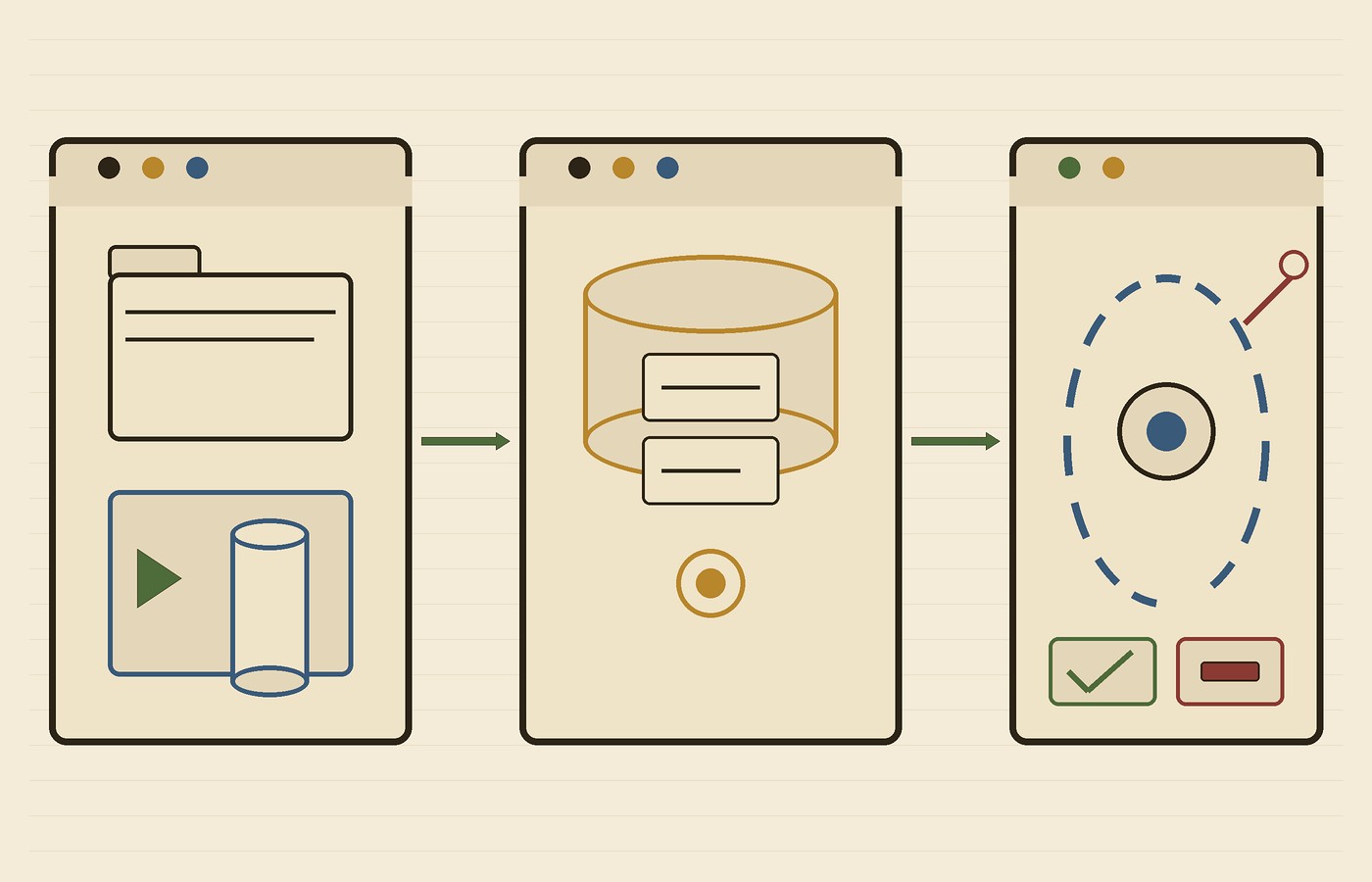
The Agents window page lists the prerequisites first. Install and run Docker on the host that contains the folder, with its CLI on PATH. Add a Dev Container configuration at .devcontainer/devcontainer.json or .devcontainer.json. For remote folders, configure a connection to a host that supports Dev Container sessions. Official docs also say Dev Container support is on by default through the chat.agentHost.devContainer.enabled setting.
Start a session in the Dev Container
The official steps on the Agents window page are short:
- Select New Session.
- In the workspace picker, expand the eligible folder’s menu and select Use Dev Container. “The workspace label gains the – Dev Container suffix.”
- “Choose an available harness and submit your prompt.”
To switch back before starting, the docs say to select Use This Computer or Use Remote Host from the folder menu. “If startup fails, check the workspace-specific Dev Container Output channel.” “The picker option isn’t available for unsupported hosts or folders nested inside another remote environment.”
Official docs also say: “Idle containers stop after five minutes when no session is working, waiting for input, or holding an unsent draft.” “Continuing a session restarts the container without losing the conversation.” Change the timeout with chat.agentHost.devContainer.idleTimeout (300 seconds by default, 0 to turn off automatic shutdown). “Marking sessions as done or deleting them can still remove the container.”
A Dev Container is not the same as a worktree
The docs say Dev Container sessions edit the container workspace directly and don’t support New Worktree. That’s a different kind of isolation than a Git worktree. The agent harnesses page is direct: “A worktree is a Git code-isolation boundary, not a security boundary.” “It does not restrict commands, network access, or access to files outside the worktree.” The Agents window page is just as clear: “Worktrees isolate working files, not the agent’s access to your machine or external services.” “Either isolation mode supports the permission levels offered by your harness.” For operating system-level restrictions, official docs point to agent sandboxing.
Where the tools actually run is still useful to know. “For a Dev Container session, the Agent Host runs inside the project’s container.” “The container can run on your machine or on a supported SSH, Tunnel, or WSL host, while the Agents window remains on your machine.” “Workspace file edits and commands use the tools and dependencies inside the container, rather than those installed directly on the source host.” That’s about the execution environment, not a claim that the container is a hard security boundary.
Sandboxing inside a Dev Container still has limits
If you want command restrictions, the official sandboxing docs have a section on using sandboxing in Dev Containers. When sandboxing is on for a new Dev Container session, “VS Code adds Docker options that let the sandbox run inside the container.” “A default container doesn’t have all of these capabilities.” “Recreate an existing container with sandboxing on if it was started without them.”
The official caution matters more than the option list. “These Docker options relax the container’s isolation from the host.” “Commands that the agent runs still run inside the sandbox, but other processes in the container don’t gain that protection automatically.”
The same sandboxing page also sets the broader boundary: “Sandboxed processes still run under your account on the execution machine.” “Sandboxing isn’t a virtual machine, a user-account boundary, or a replacement for endpoint security.” Official docs also distinguish sandboxing from running the session in a Dev Container. “Turning on sandboxing doesn’t block outbound network access by default.” “Configure network access separately if you need to restrict connections.” And: “Don’t treat a permission mode as confirmation that commands are sandboxed.”
Official docs change; use the current Run a session in a Dev Container and agent sandboxing pages for the steps and caveats.
Hero photo: Farmington Canal Lock 12 looking upstream, by Qzd, via Wikimedia Commons; CC0 1.0. Cropped and resized.